No effect when pressing F2
Fixing the F2 not responding issue
#No effect on pressing "F2" / Complete absence of audio signals
Core Isolation is activated during the Windows boot phase. Simply disabling protection modules within the antivirus interface will not solve the issue, as low-level security drivers remain active in the system.
Security warning: Disabling Memory Integrity or uninstalling antivirus software lowers system protection. Use only trusted software, download files from trusted sources, and restore Windows security protections after troubleshooting.
#1. Open Core Isolation settings
Open the Core Isolation settings in Windows 10/11. You can find them in Windows Security.
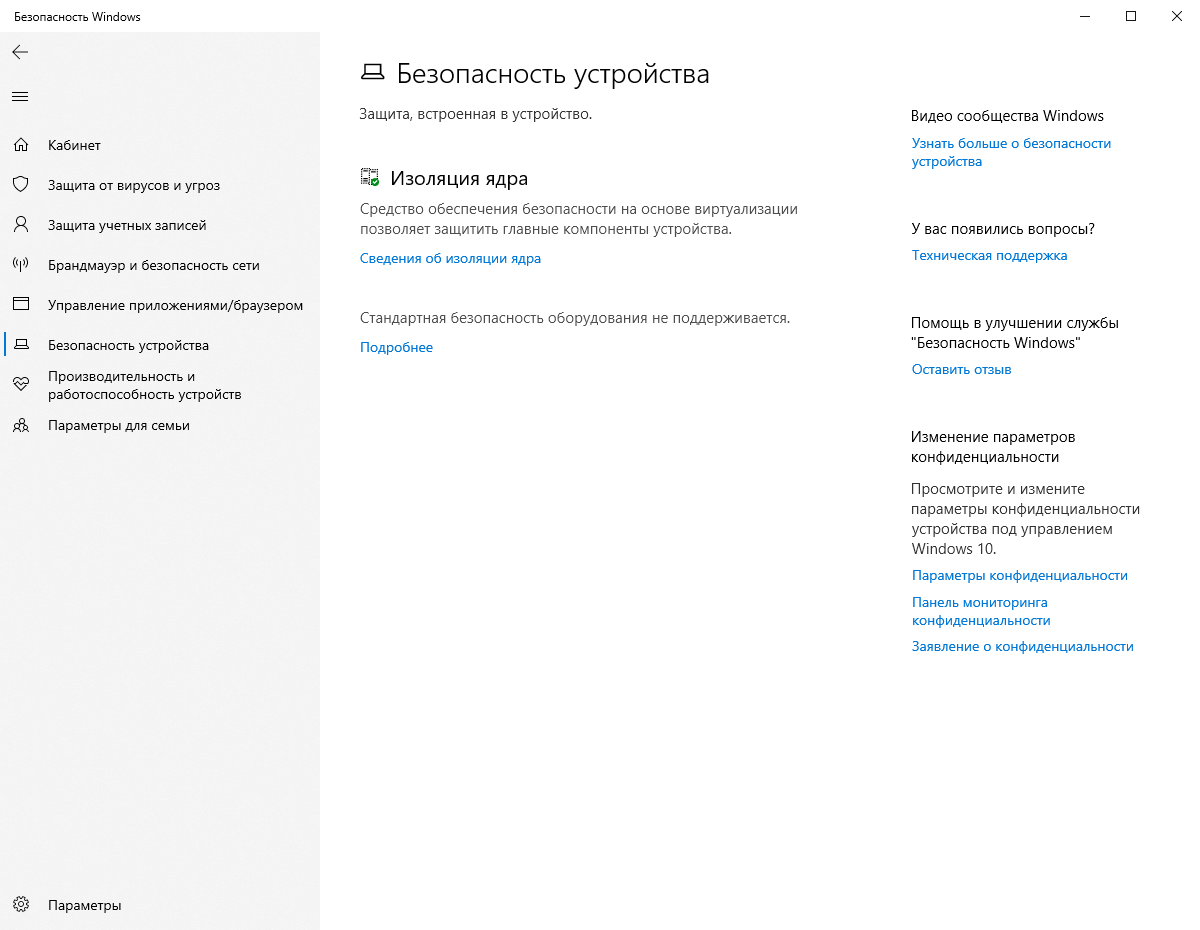
#2. Disable Memory Integrity
Disable the Memory Integrity feature in the Core Isolation tab.

#3. Remove third-party antivirus software
Completely uninstall any third-party antivirus software: Kaspersky, Avast, Avira, 360 Total Security, Dr.Web, and similar programs.
#4. Restart your PC
Restart your PC and try again.
#5. Scan for leftover files
If the problem persists after a reboot, scan your PC using antivirus-removal-tool.com and make sure no antiviruses or leftover files remain.
If you have removed Windows Defender and cannot disable Core Isolation, use a .bat file for automatic Core Isolation disablement only after verifying that its contents and source are trusted.